Audio Preview Controls
Audio Tab - Audio Preview Controls
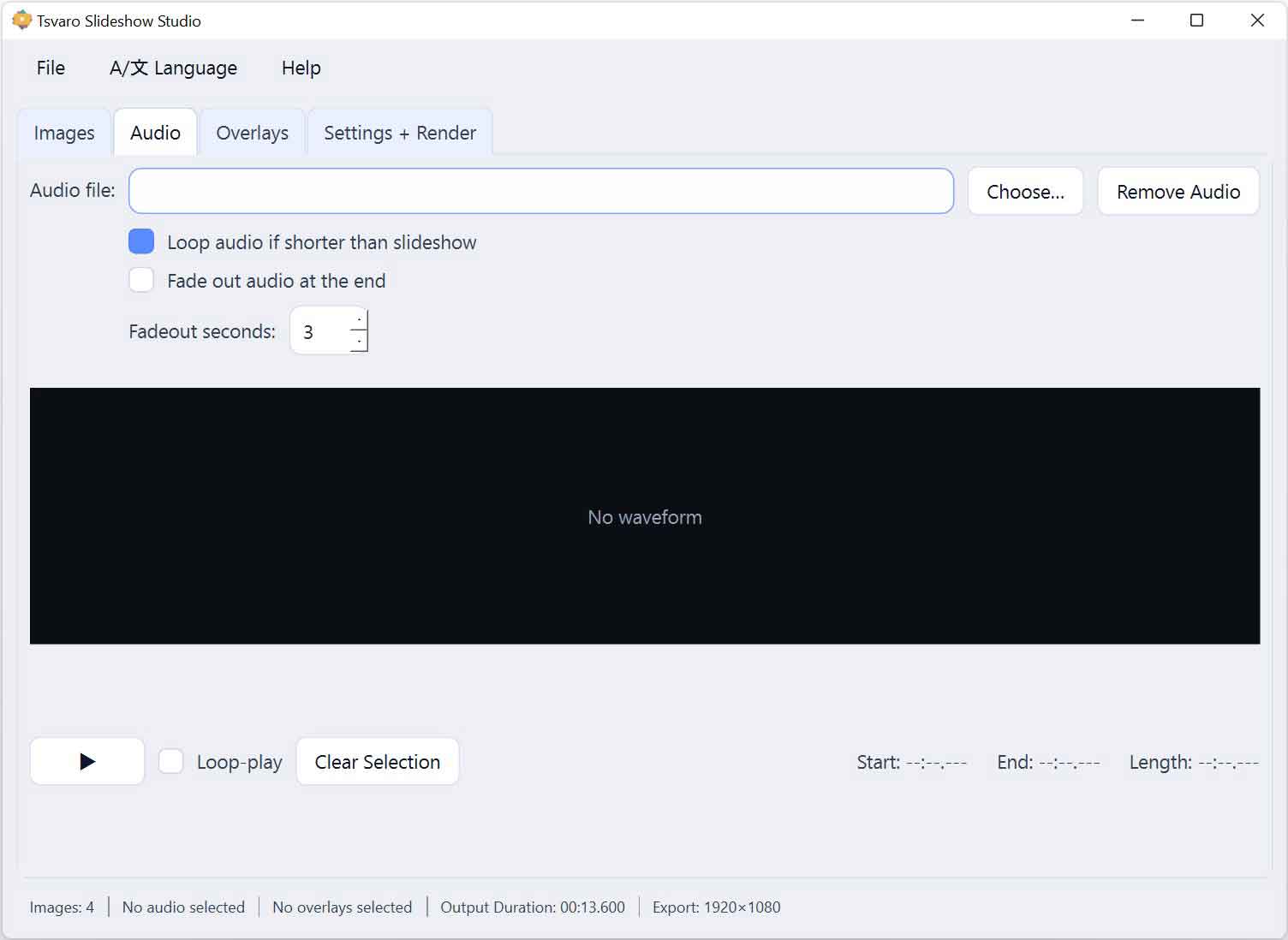
The Audio Preview Controls in the Audio tab of Tsvaro Slideshow Studio allow you to listen to the selected audio track before rendering. These controls are designed purely for previewing and checking timing; they do not change how audio is processed during final rendering.
Preview playback helps you confirm that the correct section of the audio is selected, that the timing feels right, and that the audio content matches the intended visual flow of the slideshow.
Play
The Play control starts audio playback.
- If a selection range is defined in the waveform, playback starts from the selection start.
- If no selection is defined, playback starts from the beginning of the audio track.
This allows you to quickly audition either a specific segment or the entire audio file.
Pause
The Pause control temporarily stops playback while keeping the current playback position.
- Resuming playback continues from the paused position.
- The selection range remains unchanged.
Pause is useful for closely inspecting transitions, beats, or spoken phrases without restarting playback.
Stop
The Stop control stops playback completely and resets the playback position.
- If a selection exists, the playback position returns to the selection start.
- If no selection exists, playback returns to the beginning of the audio track.
Stop is typically used when restarting a preview from a clean reference point.
Preview loop
The Preview Loop option controls whether the selected audio segment repeats continuously during preview playback.
- When enabled, playback loops over the selected range.
- When disabled, playback stops automatically at the end of the selection or track.
This option affects preview playback only and has no impact on how audio is handled during rendering.
Playback position feedback
While preview playback is active:
- The playback position indicator moves across the waveform in real time.
- You can visually track exactly where you are in the audio.
This visual feedback helps correlate what you hear with the waveform shape and selection boundaries.
Preview-only behavior
Audio Preview Controls are intentionally isolated from render logic.
- Looping here does not imply looping in the final video.
- Fade-out and trimming rules are not applied during preview.
- No preview action permanently modifies the audio file.
This separation ensures that you can experiment freely with playback without risking unintended changes to the final output in Tsvaro Slideshow Studio.
Practical usage tips
- Use preview looping to fine-tune selection boundaries.
- Pause playback to inspect timing around important moments.
- Stop playback before changing selection ranges for clearer feedback.
By using the Audio Preview Controls together with the waveform selection, you can confidently prepare audio content before rendering, ensuring that the final slideshow sounds exactly as intended.