Help Menu
Help Menu
The Help Menu in Tsvaro Slideshow Studio provides quick access to official documentation, update information, donation/support options, the in-application User Agreement, and the About dialog. These items are designed to be simple and direct: you click a menu entry, and you immediately get the relevant information without searching through settings or hidden panels.
In Tsvaro Slideshow Studio, Help Menu items fall into two categories:
- Web pages opened in your default browser (Documentation, Updates, Donate)
- In-app dialogs (User Agreement, About)
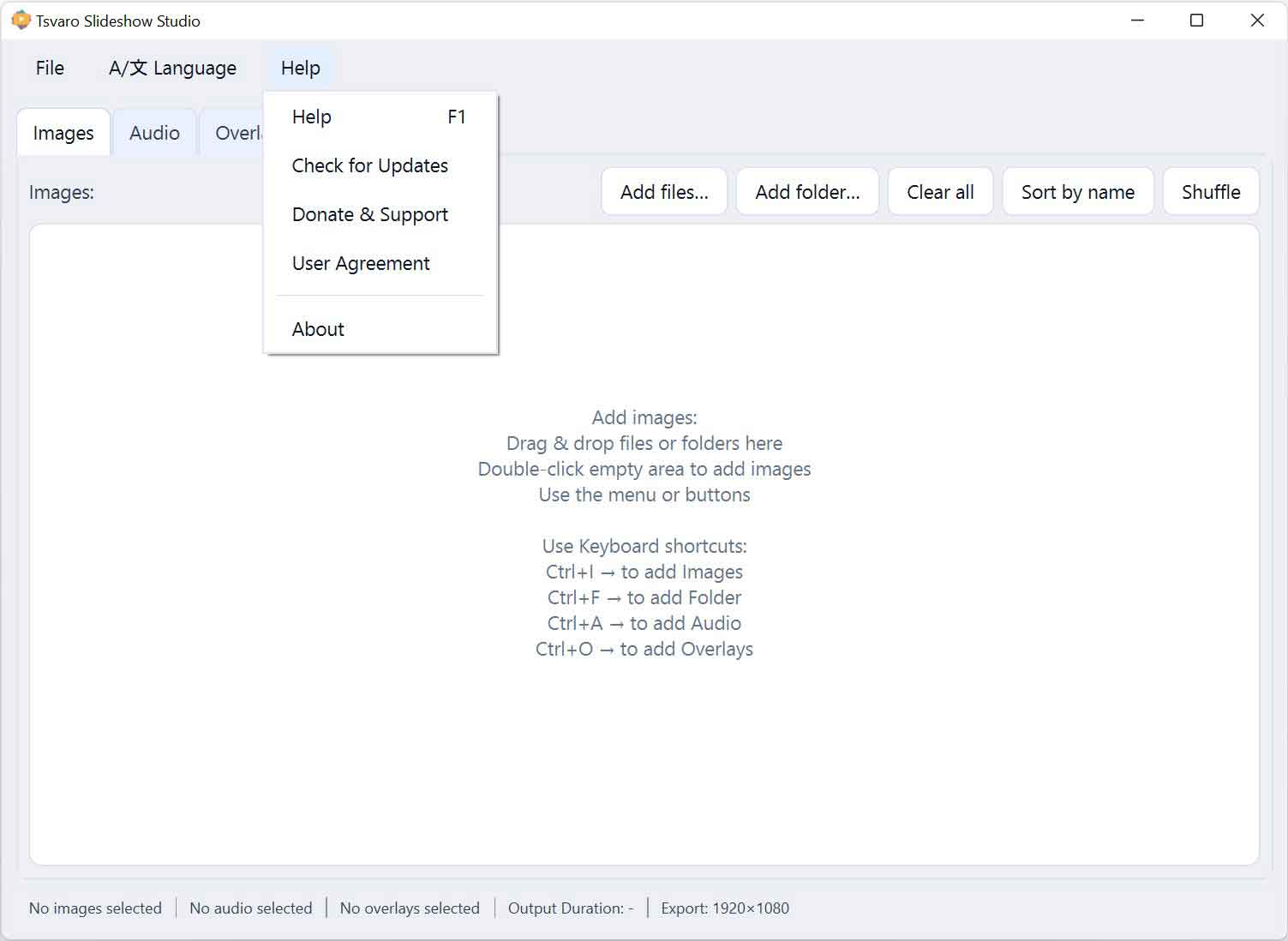
Help
Help opens the official online documentation page in your default web browser. This page explains how the application works, tab-by-tab, including controls, workflow, and rendering logic.
- Purpose: Learn how to use the application efficiently and correctly
- Where it opens: Your default web browser
- Documentation URL:
https://tsvaro.ge/apps/slideshow/help
This is the primary reference page for users. It is especially useful when learning features such as per-image controls, waveform selection, overlay positioning, and render settings.
Check for updates
Check for updates opens the update page in your browser. The update page indicates whether a newer release (or newer version) is available compared to the one currently installed. This is the official place where new builds are announced for Tsvaro Slideshow Studio.
- Purpose: Verify if a newer version is available
- Where it opens: Your default web browser
- Update URL:
https://tsvaro.ge/apps/slideshow/update
If you are troubleshooting, testing a new feature, or checking for improvements and bug fixes, this menu item is the quickest way to confirm whether an updated build exists.
Donate & Support
Donate & Support opens the donation/support page in your browser. Tsvaro Slideshow Studio is provided as a free application. If users find it useful and decide to support its development, any contribution—of any amount—helps and directly motivates continued improvement and maintenance.
- Purpose: Support the project voluntarily
- Where it opens: Your default web browser
- Donate URL:
https://tsvaro.ge/apps/slideshow/donate
Support is not required to use the application. The tool remains fully functional without donation. This option exists for users who want to contribute to future development: more features, better stability, and continued refinement of the overall workflow.
User agreement
User agreement opens the application’s User Agreement inside Tsvaro Slideshow Studio (in an in-app dialog window). This is the same agreement the user accepts during installation. It defines the basic terms of use and clarifies key points such as usage conditions and responsibility boundaries.
- Purpose: View the terms you accepted during installation
- Where it opens: Inside the application (not in a browser)
- Typical use: When you want to re-check terms, confirm conditions, or reference the agreement text
Because this is displayed in-app, it remains accessible even when you are offline.
About
About opens the About dialog inside Tsvaro Slideshow Studio. This dialog provides technical identification information about the build you are currently running. It is especially important when reporting issues, requesting support, or confirming whether you are on the latest release.
- Purpose: Identify the application build and version
- Where it opens: Inside the application (not in a browser)
- Includes: Version information and build information (as shown by the application)
When reporting a bug or asking for help, it is best practice to include the exact version/build information from this dialog. That ensures the problem can be reproduced and confirmed against the correct release.
Practical notes
- Browser pages are official references: Documentation, Updates, and Donate open the project’s official pages and are the primary source of truth for public information.
- In-app dialogs are reliable even offline: User Agreement and About remain available without requiring a network connection.
- Updates are checked via the update page: “Check for updates” uses the official update page to indicate whether a newer release exists.