Installation
Installation
Installing Tsvaro Slideshow Studio is designed to be straightforward and beginner-friendly. You do not need to install extra tools, codecs, or “video software packages” separately. The installer sets up everything required so you can start creating slideshow videos immediately after the first launch.
This page explains the full installation workflow on Windows, what to expect during first launch, and how uninstalling works. Tsvaro Slideshow Studio currently provides a Windows installer only.
Download
Before installing Tsvaro Slideshow Studio, download the latest official version from the Tsvaro website. Using the official download page ensures you get the most recent release, the correct installer file, and any important notes about changes or fixes included in the current version.
You can always download the latest version here:
If your browser or Windows shows a security prompt during download, this is normal for desktop application installers. Always verify that the file was downloaded from the official Tsvaro page before running it.
Installer overview
Tsvaro Slideshow Studio is distributed as a standard Windows installer (.exe setup). The installer:
- copies the application files to your computer,
- creates the necessary shortcuts,
- and prepares the app to run as a normal desktop program.
The installer is intended to feel familiar to Windows users-no command line steps, no manual copying of folders, and no technical configuration required.
Before you install (recommended checks)
- Download from official sources only. This helps avoid corrupted files and reduces the chance of antivirus false positives.
- Close other heavy programs if your computer is older or low on memory, especially during the first run.
- Make sure you have enough disk space not only for the app, but also for future rendered video output files.
Installation steps
-
Run the installer
Double-click the setup file (for example:TsvaroSlideshowStudio-Setup.exe). Windows may ask for confirmation-this is normal for desktop installers. -
Accept the User Agreement
During installation, you will see the User Agreement. To proceed, you must accept it. This is a standard step that confirms you understand the terms of using the application. -
Choose installation location (optional)
The installer offers a default installation folder. In most cases, you should keep the default. Advanced users can choose a different location if needed. -
Install
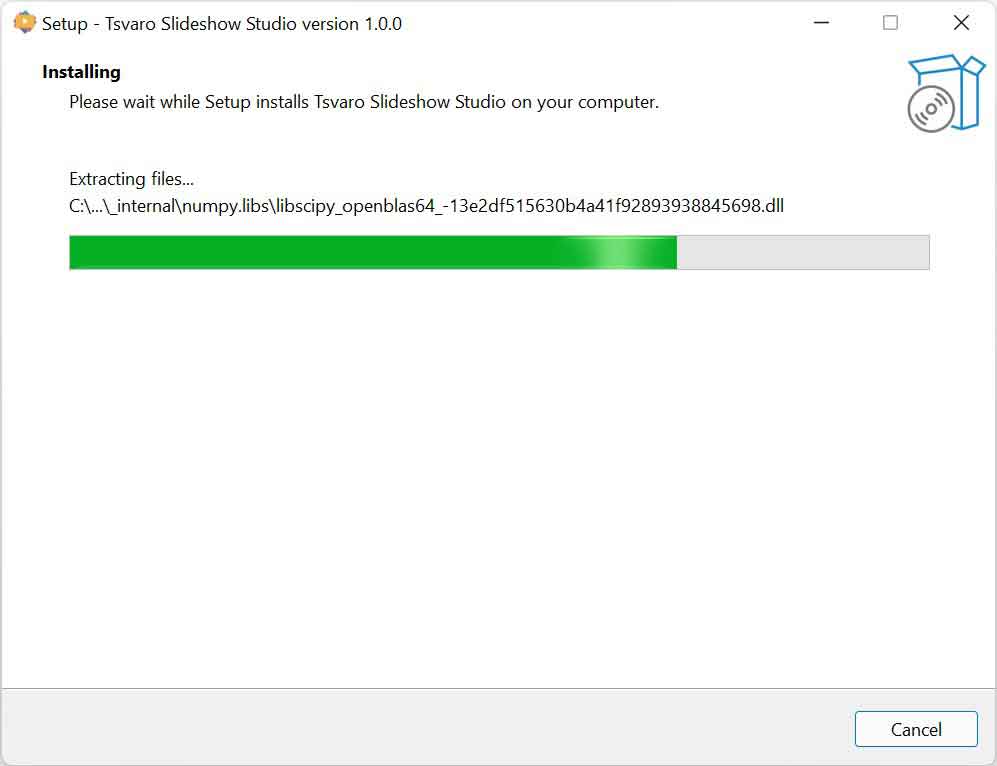
Click the install button and wait until the installer finishes copying files. This usually takes only a short time. -
Finish and launch
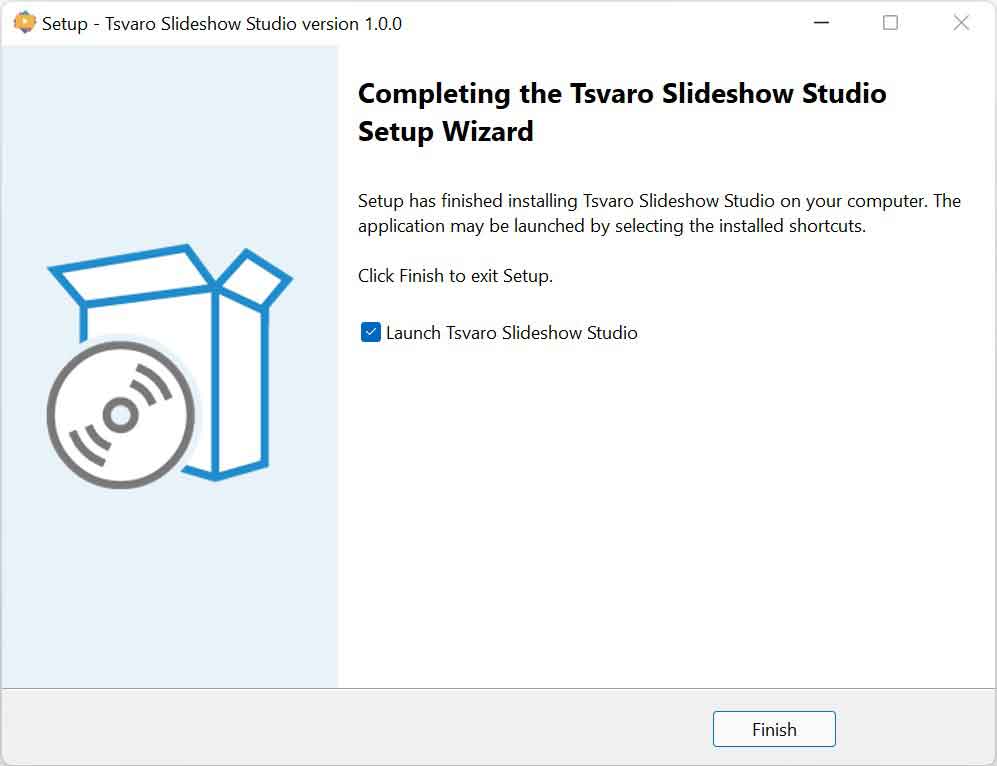
When installation is complete, you can launch Tsvaro Slideshow Studio immediately, or start it later from your Start Menu shortcut.
After installation completes, the application behaves like any other Windows desktop program: click the icon, and it starts.
First launch behavior
On first launch, Tsvaro Slideshow Studio may feel slightly slower than later launches. This can happen because Windows and security software often scan newly installed applications the first time they run.
On first launch, you should expect:
- The main window opens with the full tab-based interface.
- Default settings are loaded (video settings, timing defaults, etc.).
- The default language is loaded (you can switch language anytime from the Language menu).
If Windows SmartScreen appears during first run, it typically means Windows does not recognize the publisher yet. This is common for new applications. If you downloaded from the official Tsvaro website pages, you can proceed safely.
Updates (how new versions are checked)
Tsvaro Slideshow Studio provides a built-in menu item to check for updates. This does not silently change your installation in the background. Instead, it opens the official update page where you can see whether a newer version is available and download it manually when you choose.
This keeps updates transparent: you always know which version you are installing and when you install it.
Uninstallation notes
Tsvaro Slideshow Studio can be removed like a normal Windows program.
- Open Windows Settings → Apps (or Control Panel → Programs on some systems).
- Find Tsvaro Slideshow Studio in the installed programs list.
- Click Uninstall and follow the prompts.
Uninstalling removes the application files and shortcuts.
Important notes:
- Your rendered videos are not deleted during uninstall. Output files are your own content and remain in whatever folder you saved them to.
- If you created multiple renders, those files remain safely on disk.
- If you reinstall the app later, you can continue using your existing output files normally.
If installation fails (practical advice)
If you cannot install or launch the app, the most common causes are security restrictions or insufficient permissions. Try these steps:
- Make sure you downloaded the installer from the official Tsvaro pages.
- Temporarily close overly aggressive antivirus tools if they block the installer (then reinstall).
- Try running the installer with administrator privileges if Windows denies file writing.
- Ensure you have sufficient free disk space.
If the problem continues, open the Help pages and contact the developer with a brief description of the issue and your Windows version. That information is usually enough to diagnose installation problems quickly.