Render Controls Row
Settings + Render Tab - Render Controls Row
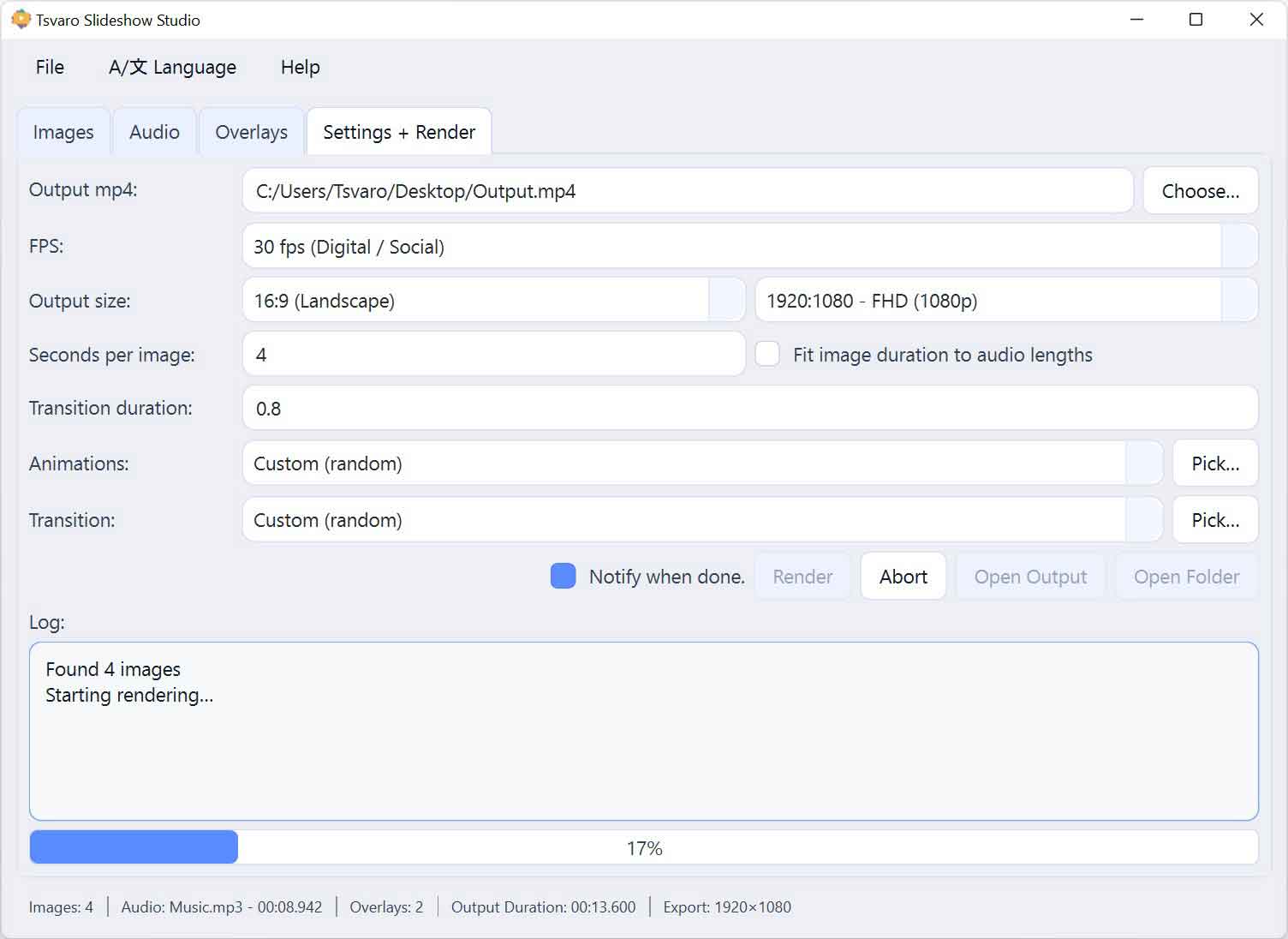
The Render Controls row in Tsvaro Slideshow Studio is the final “action bar” for producing your video. This is where you start rendering, stop it safely if needed, and quickly open the result (or its folder) when the job is done.
In Tsvaro Slideshow Studio, these controls are intentionally grouped together because they belong to one workflow: Render → Monitor → Finish → Open.
Notify when done (success sound)
The first control in this row is a checkbox labeled “Notify when done”. When enabled, the application plays a short success sound after a render finishes successfully.
- Default state: enabled (checked).
- What it does: plays a success sound only when the render finishes with success.
- What it does NOT do: it does not change render quality, speed, duration, or output format.
This option is especially useful for long renders: you can switch to other tasks and still immediately know when the video is ready.
Render
The Render button starts the video generation process. When you click it, the application performs a full validation of your current project and then begins rendering.
The render process will only start if the required conditions are met (for example, a valid output file path and enough images). If anything is missing or invalid, the application shows an error message instead of starting a broken render.
- When it is available: normally enabled when the app is idle.
- What happens after click:
- Render begins (if validation succeeds).
- The Render button becomes disabled to prevent starting a second render at the same time.
- The log is cleared and new render log messages appear immediately.
- The progress bar resets to 0% and starts updating as the render runs.
Abort
The Abort button stops an active render. This is meant for real situations: wrong settings, wrong output filename, wrong timing, or simply “I clicked Render by accident.”
- Default state: disabled (because nothing is rendering yet).
- Enabled state: becomes enabled only while a render is running.
- Stop behavior:
- The app first requests a gentle stop (safe termination).
- If the render does not stop quickly, the app force-stops it.
- A clear “abort requested” message is written into the log.
After you abort, the render process ends. If no output file was produced (common when aborting early), the “Open Output” action will simply report that nothing is available yet.
Open Output
The Open Output button opens the rendered video file directly (using your operating system’s default media player).
- Default state: disabled (because no output exists yet).
- Enabled state: becomes enabled when the render process finishes.
- Safety behavior: if the file is not found (for example, after aborting early), the app shows a “not found yet” message instead of failing silently.
This button is designed for the “instant review” workflow: render finishes → one click → video opens.
Open Output Directory
The Open Output Directory button opens the folder where your output video is saved. This is ideal when you want to quickly:
- copy the file somewhere else,
- rename it,
- upload it,
- move it into a project folder,
- or check multiple renders stored in the same directory.
- Default state: disabled.
- Enabled state: becomes enabled when the render finishes.
- Safety behavior: if the directory cannot be found (rare, but possible with moved drives/folders), the app shows a “not found yet” message.
Enabled / disabled states (quick reference)
- Idle (no render running):
- Render: enabled
- Abort: disabled
- Open Output: disabled
- Open Output Directory: disabled
- While rendering:
- Render: disabled
- Abort: enabled
- Open Output: disabled
- Open Output Directory: disabled
- After render finishes successfully:
- Render: enabled again
- Abort: disabled
- Open Output: enabled
- Open Output Directory: enabled
- Success sound plays only if “Notify when done” is enabled
- After render fails:
- Render: enabled again
- Abort: disabled
- Open Output: disabled
- Open Output Directory: disabled
- The log shows that rendering failed (including the exit code)
This strict state behavior is intentional: it prevents double-renders, prevents opening files that do not exist yet, and keeps the workflow clear for the user.