Progress + Log
Settings + Render Tab - Progress + Log
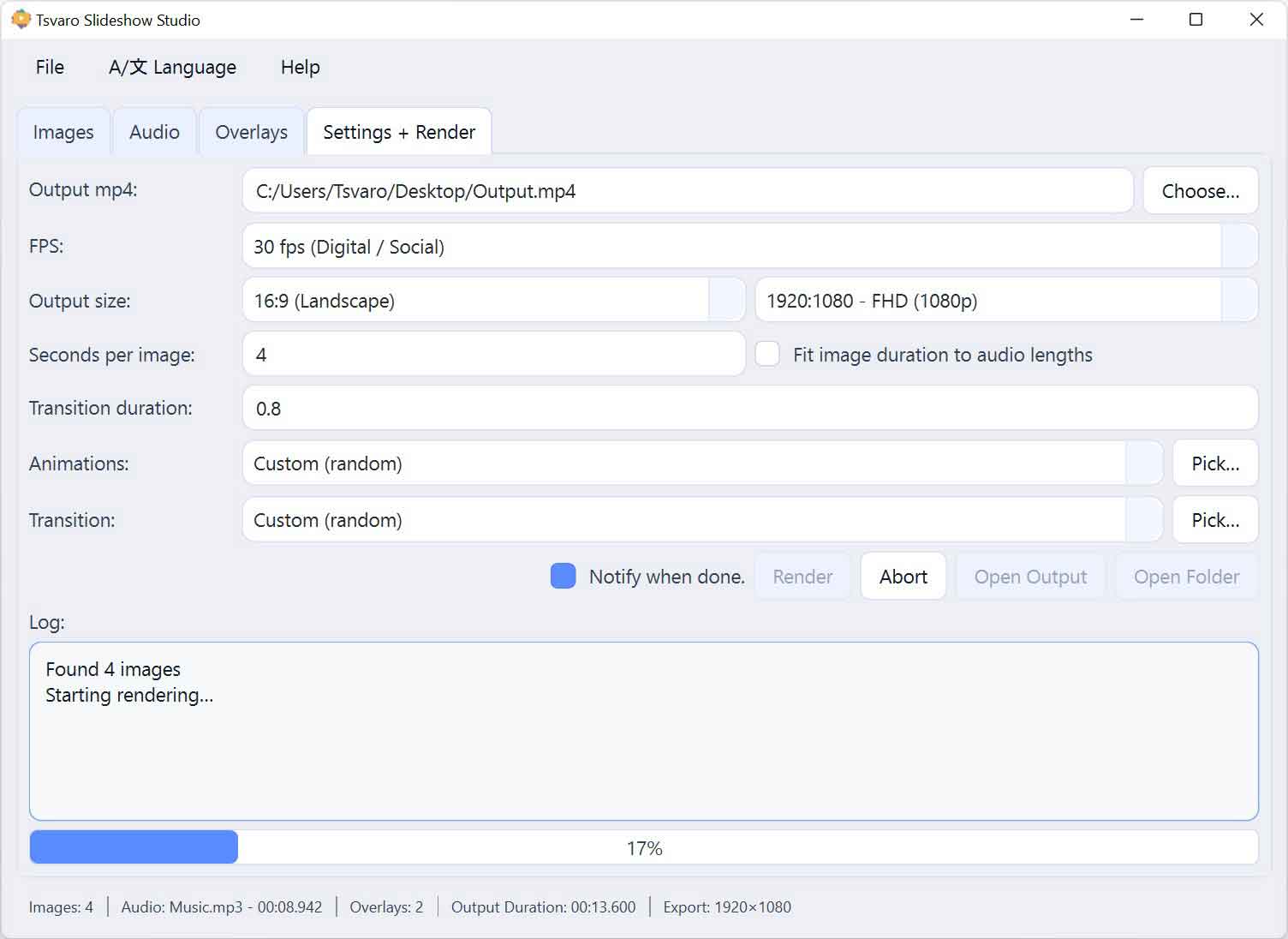
The Progress + Log area in Tsvaro Slideshow Studio is where you monitor rendering in real time. It has two parts: a Log panel (text output) and a Progress bar (0–100%). Together they tell you what the application is doing, whether it is finishing successfully, and-most importantly-what went wrong if something fails.
This section is intentionally placed directly under the Render buttons so the workflow stays simple: Render → watch progress → read log → open output.
Log panel
The Log panel is a read-only text area. You cannot type into it, but you can select and copy text from it (useful if you need to send error details to support or keep a record of what happened).
- Read-only: the log is for output and messages only.
- Clears automatically: when you start a new render, the log is cleared so you only see messages from the current render session.
- Two kinds of messages appear:
- Application messages (for example: starting, aborting, finishing).
- Render engine error output (only error-level messages are shown, so the log stays clean and readable).
At the beginning of each render, Tsvaro Slideshow Studio writes clear “session start” messages, including a line that confirms the number of images found and a line that indicates rendering is starting.
What you will typically see in the log
During normal usage, the log will contain messages such as:
- Found images (the total number of images in the current render).
- Starting rendering (render process launched successfully).
- Abort requested (if you click Abort).
- Force stop (only if Abort did not stop rendering quickly and the app had to force-stop the process).
- Done (render completed successfully).
- Aborted (render was stopped by the user).
- Failed with exit code (render ended with an error; the exit code is shown).
When a render fails, the error output from the render engine is also written into this log panel. This is the most important place to look when diagnosing problems, because it shows the actual error text rather than a generic “failed” message.
Progress bar
The Progress bar shows a percentage from 0 to 100 while rendering is running. It is designed to be a practical indicator rather than decorative:
- Resets to 0% when you start a new render.
- Updates during rendering as the output timeline advances.
- Finishes at 100% only when rendering completes successfully.
- Returns to 0% if rendering fails.
Progress is calculated based on the actual output timeline of the current render. This means the progress bar aligns with the final video duration, not just “how many images are processed.”
What happens when rendering finishes
When the render process ends, the UI changes immediately:
- The Abort button becomes disabled (because there is nothing running anymore).
- The Render button becomes available again.
- If the render finished successfully, Open Output and Open Output Directory become enabled.
If the render finishes successfully, Tsvaro Slideshow Studio also sets the progress bar to 100% and writes a clear “done” message in the log. If it fails, the app writes a “failed” message with the exit code and disables the open buttons because there is no guaranteed valid output file to open.
How to use the log when something goes wrong
If rendering fails, do not guess. Use the log:
- Scroll to the bottom of the log and read the last error lines.
- Look for a clear error description (missing file, invalid timing values, unsupported media, etc.).
- If you need help, copy the last part of the log and share it exactly as shown.
Because only error-level engine output is shown, the log is not “spammy.” When you see a line there, it usually matters.
Important note about aborted renders
If you abort a render early, the output file may not exist yet (or may be incomplete). In that case, using Open Output or Open Output Directory may result in a “not found yet” message. This is normal and prevents the app from opening a missing or invalid file.
For the cleanest results, when you abort a render and then want to try again, adjust your settings first and start a fresh render so the progress and log reflect a clean session.