Overlay Properties
Overlays Tab - Overlay Properties
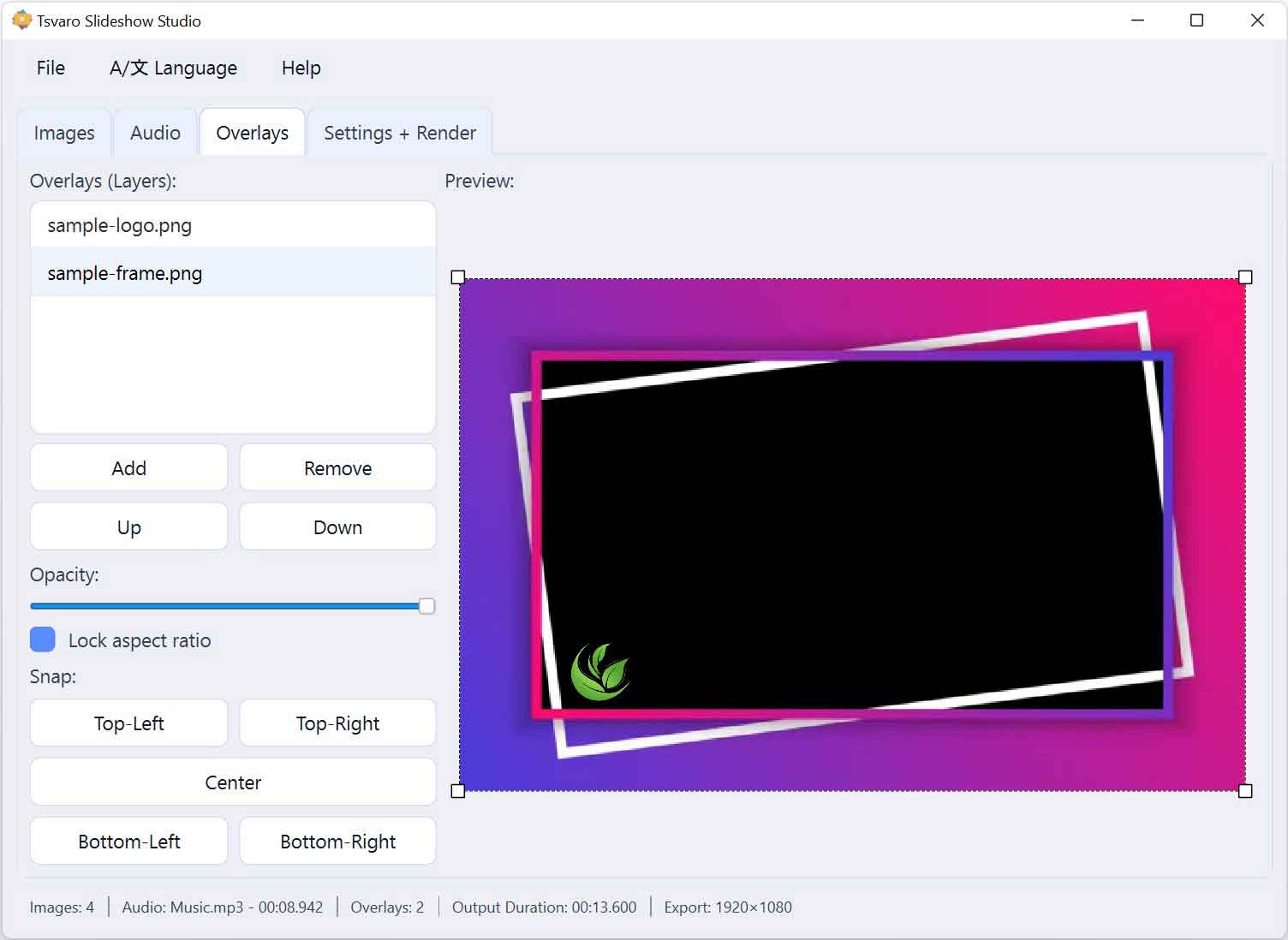
The Overlay Properties area in Tsvaro Slideshow Studio is where you control how a selected overlay layer actually looks and behaves on top of the video. This is not “extra decoration” - it is the place where you decide whether an overlay sits perfectly in a corner like a clean watermark, stretches as a full frame, stays proportional like a proper logo, or fades subtly into the background.
Overlay properties are always applied per layer. That means each overlay you add can have its own transparency, its own resize behavior (locked or free), and its own exact placement in the video frame. Nothing here changes your images or audio - it affects only overlays.
Selection rule (very important)
Overlay properties always work on the currently selected overlay layer.
- If you have multiple overlays, you must first select the one you want to edit in the Overlay List (Layers).
- Only the selected overlay is affected by changes to opacity, snapping/alignment, and aspect ratio locking.
- This design prevents accidental edits to the wrong layer and keeps complex projects predictable.
Opacity (transparency)
The Opacity slider controls how transparent the selected overlay appears in the final render. This is one of the most important practical controls because overlays often need to be visible but not distracting.
- 100% means the overlay is fully solid and completely visible.
- 0% means the overlay is fully transparent (effectively invisible).
- Middle values create the “watermark” style effect that is common for logos and branding.
Use opacity thoughtfully:
- For a watermark: set a lower opacity so it stays present but does not dominate the image.
- For a decorative frame: medium opacity often feels more professional than a fully solid frame.
- For informational overlays that must be clearly readable: higher opacity is usually necessary.
Lock aspect ratio (resize behavior)
The Lock aspect ratio checkbox controls whether the overlay keeps its original proportions while you resize it in the preview canvas.
- Enabled: the overlay scales proportionally. This is the recommended mode for logos, emblems, and any graphic that must not be distorted.
- Disabled: you can stretch width and height independently. This can be useful for certain frames or background-style overlays, but it can also distort logos, so it should be used deliberately.
This option exists for a practical reason: many overlays are brand assets, and distortion looks unprofessional immediately. Keeping proportions locked protects visual quality.
Snap / Align (instant positioning)
The Snap controls instantly place the selected overlay at a precise anchor point in the video frame. These are not “approximate” alignments - they are direct placement shortcuts that prevent fiddling and help you maintain consistency across projects.
- Top Left - common for subtle watermarks on documentary/exhibition visuals
- Top Right - common for channel branding or corner logos
- Center - useful for centered frames or center-focused graphics
- Bottom Left - common for credits, small logos, or museum caption overlays
- Bottom Right - a typical watermark location for general video output
Snap positioning is especially useful when:
- you need the same consistent logo placement across multiple videos,
- you change overlay size and want to re-anchor it cleanly,
- you change video format (aspect ratio / resolution) and need quick re-alignment.
Direct manipulation in the preview canvas
Overlay properties are not only controlled by sliders and buttons. In Tsvaro Slideshow Studio, the preview canvas is also a key part of overlay editing:
- You can drag the overlay directly to reposition it visually.
- You can resize the overlay using its resize handles.
- If aspect ratio is locked, resizing remains proportional; if unlocked, resizing can stretch freely.
This combination of direct manipulation + property controls is intentional: it allows fast rough placement by dragging, followed by precise anchoring with Snap controls.
Layer order is a property too (because it changes what you see)
Even though layer ordering is controlled in the Add/Remove/Order panel, it directly affects how overlays appear and interact. If two overlays overlap, the one higher in the stack will cover the one below.
- Use Up and Down to adjust which overlay appears “on top.”
- This is critical for combinations like: frame + logo + watermark.
Required check after changing output video format
Overlay placement is tied to the current video frame shape. That means if you later change video settings in the Settings + Render tab-especially aspect ratio or resolution-your overlays may no longer be positioned exactly as intended.
Rule: after changing aspect ratio or resolution, always return to the Overlays tab and re-check every overlay layer in the preview canvas. If necessary, re-align using Snap buttons and adjust size and opacity again. This step prevents common mistakes like logos drifting too close to the edge, frames no longer matching the visible area, or overlays becoming visually unbalanced.
What these properties affect during rendering
Everything you set here is applied during rendering exactly as you see it:
- Opacity affects transparency in the final video.
- Aspect ratio lock affects how your manual resizing behaves.
- Snap/alignment defines exact overlay placement.
- Canvas drag/resize defines the overlay’s final position and size.
- Layer order determines which overlays appear above others.
By using these overlay properties carefully, you can achieve clean branding, consistent framing, and professional-looking composition in every video you render with Tsvaro Slideshow Studio.