Per-Image Controls
Images Tab - Per-Image Controls
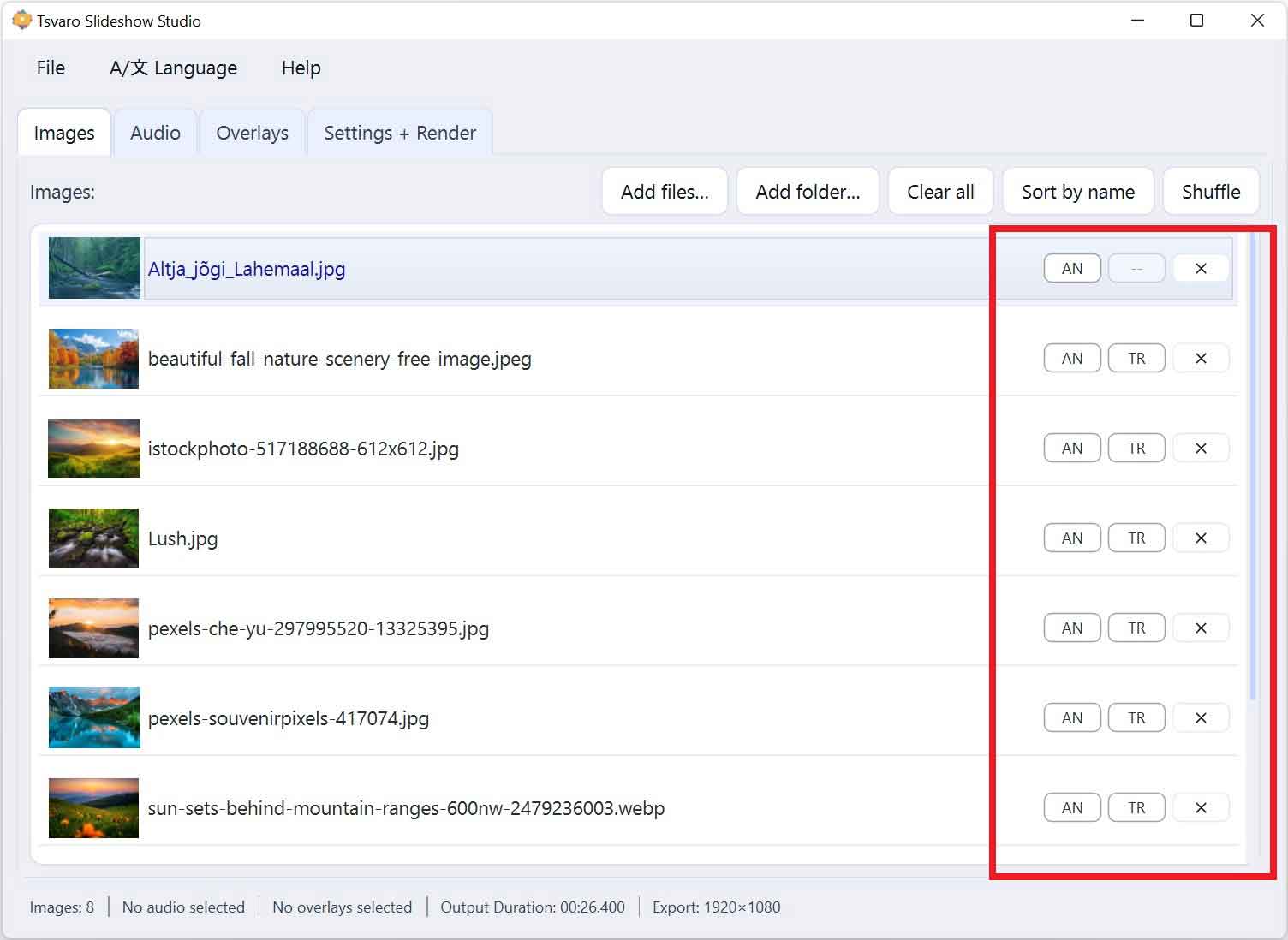
Per-image controls in Tsvaro Slideshow Studio are one of the most powerful features in the whole app. They let you keep a clean, simple global workflow, while still giving you precise control over specific images when you need it.
Think of it like this: global settings give your slideshow a consistent “style,” but per-image controls let you say: “This one image should behave differently.” In Tsvaro Slideshow Studio, this is done in a clear, visual way directly inside the image list-without opening extra panels or complicated editors.
Where you see per-image controls
Per-image controls appear directly on each image item in the main image list. They are designed to be compact, readable, and always available while you reorder or review your images.
These controls are visible as short labels/buttons:
- TR / TR* - per-image transition override
- AN / AN* - per-image animation override
The star (*) is important: it is the visual indicator that the image is not using the global default for that setting.
TR and TR* - Per-image transition override
The TR control is used to assign a transition specifically for that image. When you click it, you can choose a transition for that image rather than relying on the global transition behavior.
- TR means no per-image transition is assigned (the image follows global transition logic).
- TR* means a per-image transition is assigned (this image overrides the global rule).
This feature is useful when one particular image change needs a different feel. For example:
- A “title” or “cover” image can use a gentle transition for a calm introduction.
- A dramatic or important image can use a stronger transition to draw attention.
- Most images can follow a global random style, while a few key images remain controlled and consistent.
A per-image transition acts as a priority rule: if an image has its own transition assigned, that assignment takes precedence over global behavior.
AN and AN* - Per-image animation override
The AN control assigns an animation specifically for that image. Animations create motion within the still image while it is displayed (zoom/pan style movement). The goal is to add life and depth without making the slideshow chaotic.
- AN means the image uses the global animation setting.
- AN* means the image has its own animation and does not follow the global rule.
This is ideal when you want to guide the viewer’s attention. For example:
- Zoom gently toward a person’s face in one particular photo.
- Use a subtle pan to reveal important details in a wide image.
- Keep most images calm, but animate a few images for emphasis.
If global animations are set to random, per-image overrides are still respected. That means you can allow variety overall, while guaranteeing that certain key images always behave exactly as you chose.
How per-image overrides interact with global settings
This is the rule that keeps everything predictable:
- If there is no star (TR / AN): the image follows the global settings.
- If there is a star (TR* / AN*): the image uses its own assigned value instead of the global one.
This makes your slideshow easy to manage even with many images. You can scan the list quickly and immediately see which images have special behavior.
Why the star indicator matters
In long slideshows, it is easy to forget which images you customized. The star indicator solves that.
- You can scroll through the list and visually locate customized images instantly.
- You can confirm that only a few images are overridden (or that many are overridden if that is your intention).
- You can keep your workflow organized without needing an extra “settings summary” screen.
It is a small UI detail, but it makes a big difference in real projects.
Resetting per-image overrides
Per-image controls are designed to be reversible. If you assigned an animation or transition and later decide it should follow the global style again, you can reset that image to the default behavior.
- When you remove the per-image assignment, the star disappears.
- The image returns to using the global rule automatically.
This encourages experimentation: you can try different looks on specific images without “locking yourself in” permanently.
Best practices (what looks professional)
- Use global settings for consistency, and per-image overrides only for emphasis.
- Keep overrides meaningful: if everything is special, nothing is special.
- Use per-image animations to guide attention (faces, objects, important details).
- Use per-image transitions sparingly-they are most powerful when used for key moments.
- Scan for stars before rendering: TR*/AN* are a quick “final check” that your custom choices match your intent.
Per-image controls are what make Tsvaro Slideshow Studio feel both simple and professional at the same time: a beginner can ignore them and still get great results, while a more demanding user can shape the slideshow image-by-image without leaving the clean workflow.