Overlay Preview Canvas
Overlays Tab - Overlay Preview Canvas
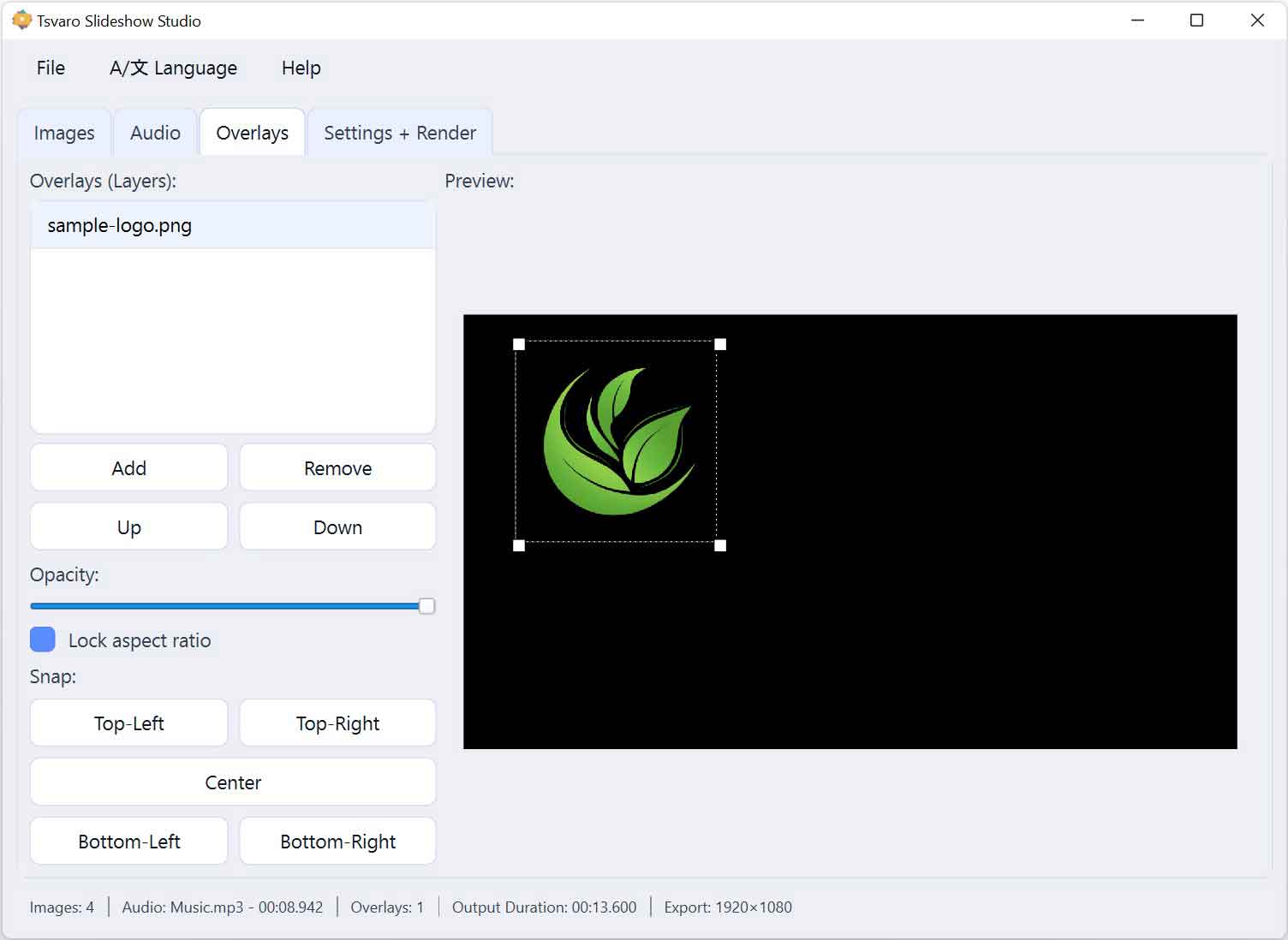
The Overlay Preview Canvas in Tsvaro Slideshow Studio is the main visual workspace for placing and adjusting overlay layers. It provides a direct, interactive representation of how overlays will appear on top of the slideshow images in the final rendered video.
This canvas is not a passive preview. It is an active editing surface where overlays can be positioned, resized, and visually aligned with precision, making it possible to fine-tune layout decisions without relying on abstract controls or numeric input.
What the preview canvas shows
The preview canvas displays:
- The current video frame boundaries
- The selected overlay layer
- Other visible overlay layers (as context)
This gives a realistic approximation of how overlays will be composited during rendering, based on the current project settings.
Direct interaction
Overlay layers can be manipulated directly inside the canvas.
- Click and drag an overlay to reposition it.
- Resize the overlay by dragging its resize handles.
- All movements are constrained to the visible video frame.
These interactions allow you to work visually and intuitively, which is especially useful when precise placement matters.
Selection and focus
Only one overlay layer is active at a time.
- The selected overlay is visually highlighted.
- Its resize handles are visible.
- Property controls apply only to the selected overlay.
This prevents accidental modification of multiple overlays at once and keeps editing predictable.
Relationship with overlay properties
The Overlay Preview Canvas and the Overlay Properties panel work together:
- Dragging and resizing in the canvas updates property values.
- Changing properties updates the overlay appearance in the canvas.
This two-way interaction ensures that visual and control-based adjustments stay fully synchronized.
Impact of video settings changes
Overlay placement is relative to the current video dimensions.
- If you change the video aspect ratio in the Settings + Render tab, the shape of the preview canvas changes.
- If you change the video resolution, the effective coordinate space also changes.
Because of this, overlays that were positioned before these changes may no longer appear exactly where intended.
Important: Whenever you change aspect ratio or resolution in the Settings + Render tab, you should return to the Overlays tab and review all existing overlay layers. Reposition or resize them as needed to ensure correct alignment in the new video format.
Practical recommendations
- Define your target aspect ratio and resolution early in the project when possible.
- If you must change video dimensions later, always recheck overlay placement.
- Use snap-to-anchor controls after dimension changes to quickly realign overlays.
By treating the Overlay Preview Canvas as a living, project-sensitive workspace, Tsvaro Slideshow Studio helps ensure that overlays remain visually consistent and intentional across different output formats.