Top Controls Row
Images Tab — Top Controls Row
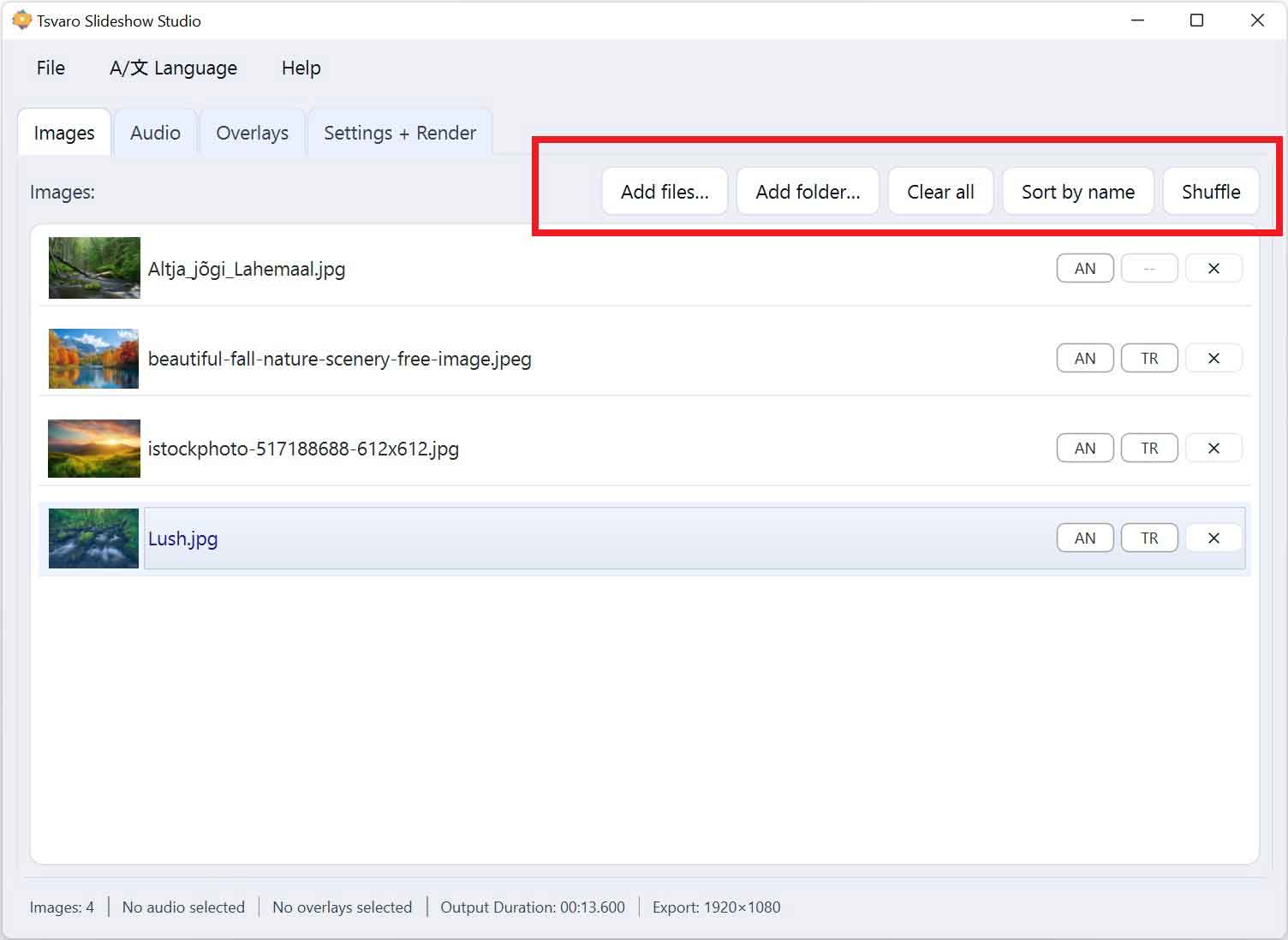
The Top Controls Row in the Images tab of Tsvaro Slideshow Studio contains all primary actions related to managing the image list as a whole. These controls affect the entire set of images currently loaded into the slideshow, not individual images.
This row is designed for fast, practical workflow: adding images, cleaning the list, changing order, and applying automatic arrangements before moving on to per-image fine-tuning.
Add files…
The Add files… button opens a file selection dialog that allows you to select one or more image files from your system and add them to the slideshow.
- Selected images are appended to the current image list.
- You can select multiple files at once using standard system selection methods (Ctrl / Shift).
- The order in which images are added reflects the selection order provided by the operating system.
This button is most useful when your images are spread across different folders or when you want precise control over which files are included.
Add folder…
The Add folder… button opens a directory picker and imports images from the selected folder into the image list.
- All supported image files found in the selected folder are added.
- The images appear in the list as a group, ready for reordering or shuffling.
This option is ideal for importing a complete photo set, scanned archive, or any project where images are already organized inside a single directory.
Clear all
The Clear all button removes all images from the image list at once.
- This action clears the entire list immediately.
- Per-image settings (such as individual animations or transitions) are also removed together with the images.
Use this when you want to restart image selection from scratch or abandon the current image set before importing a new one.
Order by name
The Order by name button automatically sorts the image list alphabetically based on file names.
- Sorting is applied to the full list of images.
- The resulting order is deterministic and repeatable.
This is especially useful when image files follow a naming convention (for example: numbered scans, camera exports, or chronological filenames).
Shuffle
The Shuffle button randomizes the order of images in the list.
- Each click produces a new random order.
- No images are added or removed—only the order changes.
Shuffle is commonly used for creative or non-linear presentations, background visuals, or when you want a less predictable sequence without manually reordering items.
How these controls work together
- You can freely combine these actions in any order (for example: add a folder → shuffle → manually tweak order).
- None of these actions affect audio, overlays, or render settings.
- All changes are immediately reflected in the image list below.
Once the overall image set and order are prepared using the Top Controls Row, you can move on to individual image customization directly in the image list items below.