Audio Waveform Preview
Audio Tab - Audio Waveform Preview
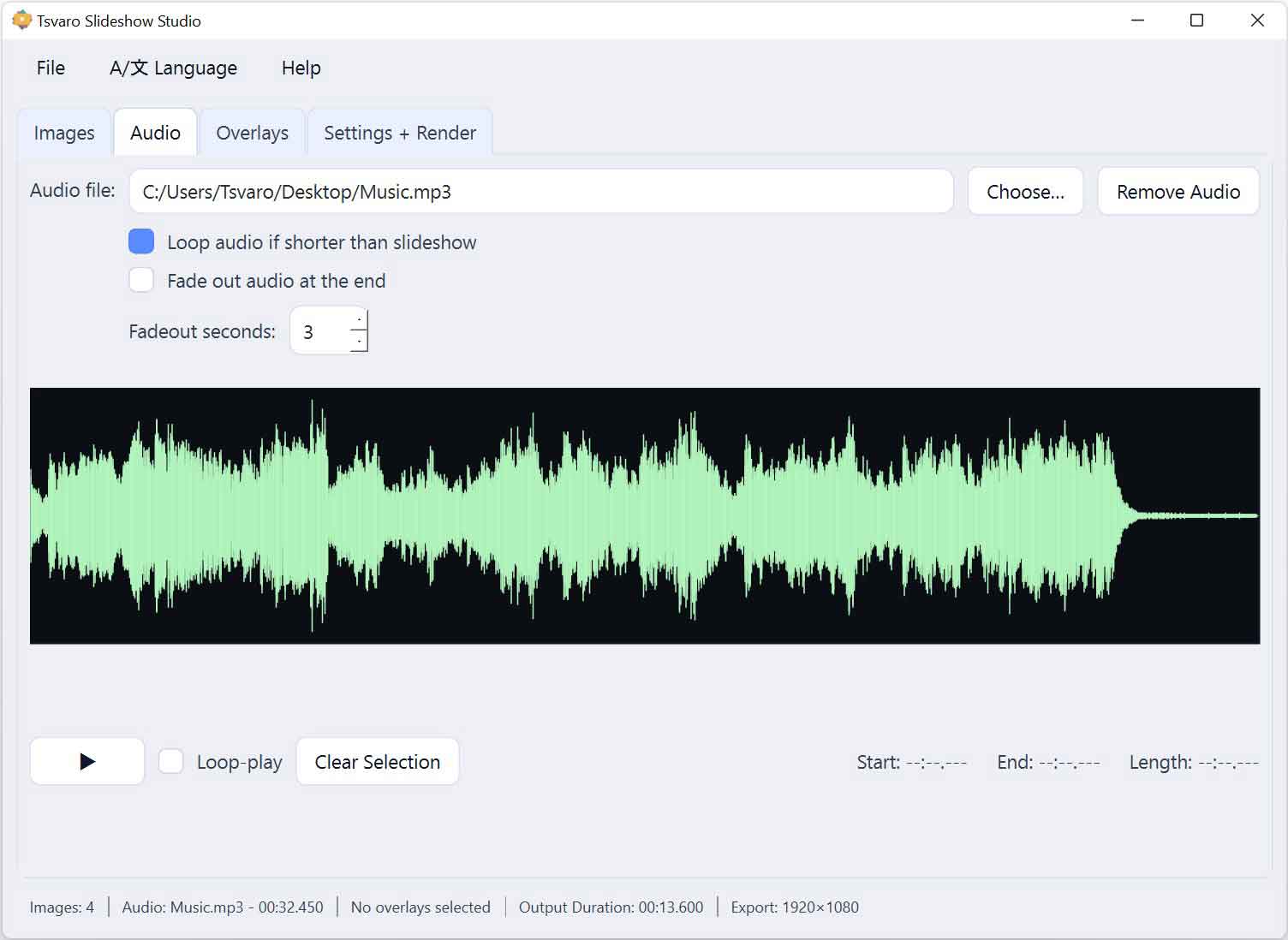
The Audio Waveform Preview in Tsvaro Slideshow Studio provides a visual representation of the currently selected audio file. It allows you to see the structure of the sound over time and to define an exact segment of the audio that will be used for playback preview and for final rendering.
This component is designed for precision and clarity. Instead of working blindly with timestamps, you can visually identify quiet sections, peaks, pauses, and transitions in the audio track.
Waveform overview
Once an audio file is loaded, its waveform is rendered across the full width of the preview area.
- The waveform represents the entire duration of the audio file.
- Louder sections appear visually denser or taller.
- Quieter or silent sections are visually lighter.
This overview helps you quickly understand the rhythm and structure of the audio without listening to it first.
Selection range
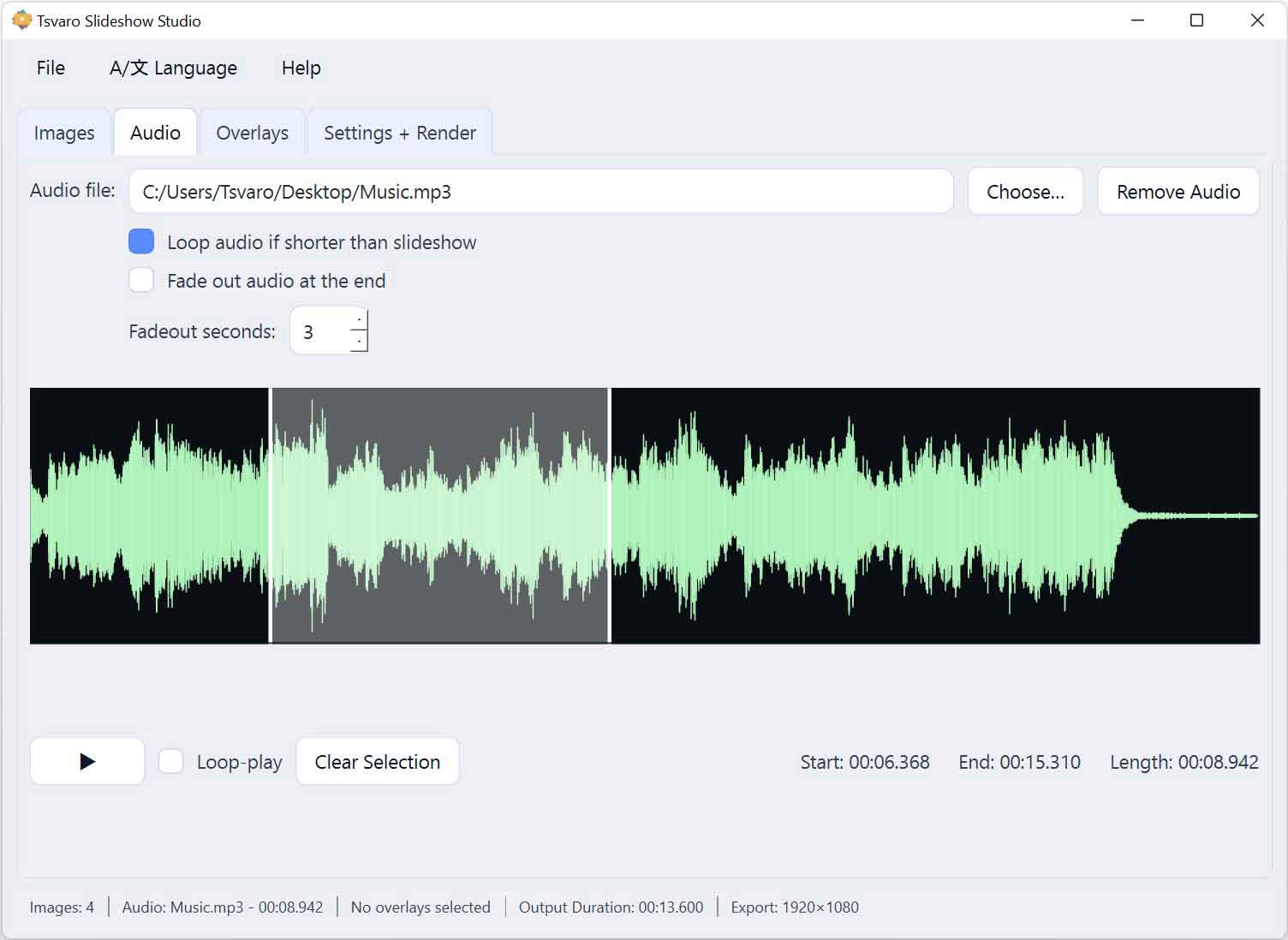
The waveform preview supports selecting a specific portion of the audio.
- You can define a start and end point on the waveform.
- The selected range is highlighted visually.
- Only the selected portion is used during preview playback and rendering.
If no range is selected, the audio is treated as unselected and no implicit trimming is applied.
Selection handles
At the edges of the selected range, visible handles allow precise adjustment.
- Dragging the left handle moves the selection start.
- Dragging the right handle moves the selection end.
- Handles provide fine control over timing without manual input.
This makes it easy to trim intros, outros, silence, or unwanted sections of the audio track.
Cursor behavior
The waveform area responds to different cursor interactions:
- The main waveform area uses a text-style cursor to indicate selectable content.
- Selection handles use a pointer cursor to indicate draggable controls.
These visual cues help distinguish between selecting a range and adjusting an existing selection.
Playback position indicator
During audio preview playback:
- A moving indicator shows the current playback position.
- The indicator advances in real time across the waveform.
This makes it easy to correlate what you hear with what you see in the waveform.
Reset and replacement behavior
When a new audio file is loaded:
- The waveform preview updates to the new file.
- Any previous selection is cleared automatically.
- The preview returns to an unselected state.
This prevents accidental reuse of selections from a different audio track.
Why waveform preview matters
- It allows precise audio trimming without numeric input.
- It reduces trial-and-error during playback.
- It makes syncing visuals to music or narration more intuitive.
By combining visual feedback with direct interaction, the Audio Waveform Preview gives you full control over how sound is used in your slideshow, ensuring predictable and intentional results in Tsvaro Slideshow Studio.