Animations (Global)
Settings + Render Tab - Animations (Global)
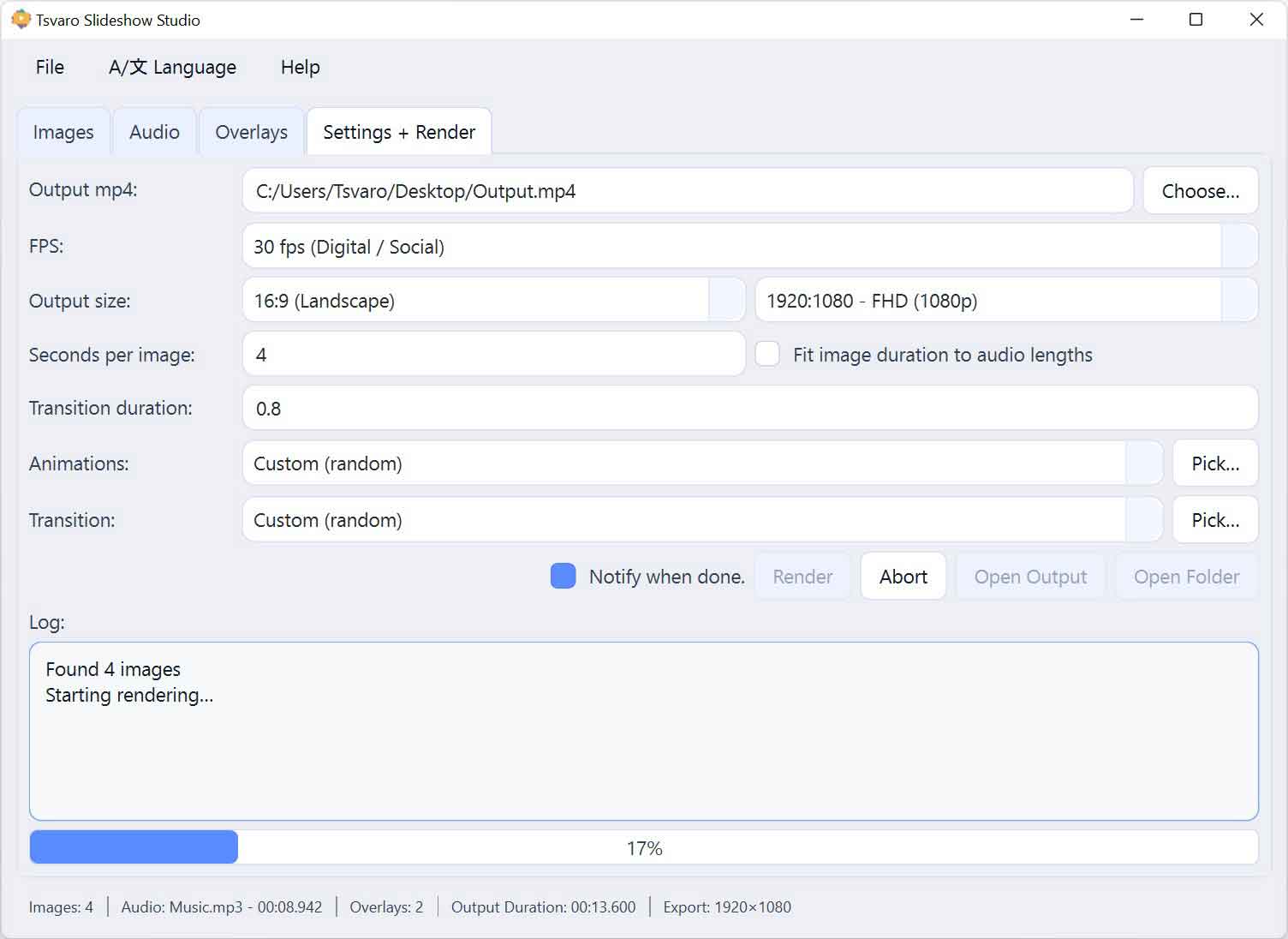
The Animations (Global) section in Tsvaro Slideshow Studio controls how each still image moves while it is on screen. Animations are applied during the image’s visible time (not between images). They are designed to add gentle motion so the slideshow feels alive instead of static.
In Tsvaro Slideshow Studio, global animations work in three clear modes: Off (no motion), Single preset (the same animation for all images), or Custom (random) (the app randomly assigns an animation per image from your selected pool).
Animation preset dropdown
The main control is a dropdown that lets you choose the global animation behavior.
- Off (no animation): images remain static for their entire duration.
- Single preset: one selected animation preset is applied to every image in the slideshow.
- Custom (random): becomes available/active when you select multiple presets in the “Pick…” dialog (explained below).
When a single preset is selected in the dropdown, it is used as the default animation for the whole project-unless a specific image overrides it with its own animation.
Pick… (choose animation presets)
Next to the dropdown there is a Pick… button. This opens an animation selection dialog where you can build your own “allowed presets” pool. This is the control that enables Custom (random) mode.
Inside the dialog you will see:
- Select all - checks every animation preset in the list.
- Select none - clears the entire selection.
- A scrollable list of animation presets (each with its own checkbox).
- Save my choice - a checkbox enabled by default.
- OK / Cancel buttons.
How the selection affects the dropdown
The dialog selection directly changes how the global animation dropdown behaves:
-
If you select exactly 1 preset and press OK:
- The dropdown automatically switches to that preset.
- The “random pool” is cleared because randomness is not needed when there is only one choice.
-
If you select 2 or more presets and press OK:
- The dropdown switches to Custom (random).
- The selected presets become the active random pool.
- During rendering, the app will randomly choose one of those presets per image.
-
If you select nothing and press OK:
- The random pool is cleared.
- If the dropdown was currently set to Custom (random), the app returns the dropdown to a normal (single) selection state.
- Result: randomness is disabled because there is no pool to pick from.
“Save my choice” (persistent vs one-time)
The dialog includes a Save my choice checkbox (enabled by default). This controls whether your multi-preset selection is remembered for future sessions.
- Enabled: your selected pool is saved and restored automatically the next time you open the app.
- Disabled: the selection applies only to the current session; it is not stored for next time.
This is useful if you want a consistent “signature style” across projects, while still allowing temporary experimentation without permanently changing your default pool.
How Custom (random) behaves during rendering
When the dropdown is set to Custom (random) and a pool exists:
- The application selects an animation preset randomly for each image.
- The random choice is made per image at render time (not continuously during playback).
- Because choices are random, two renders of the same project can result in different animation assignment unless you keep the pool very small.
Per-image animations override the global choice
Global animations are the default rule-but they are not the only rule. In the Images tab, each image can have its own animation assigned (shown in the per-image controls as AN / AN*).
- If an image has a specific animation assigned, that image uses its own animation.
- For that image, the global dropdown setting is ignored.
- This allows you to keep a consistent overall style while making specific images behave differently when you need emphasis.
Practical guidance (what works best)
- For clean, calm videos: use a single global preset or keep animations Off.
- For dynamic slideshows: use Custom (random) but limit the pool to presets that visually match each other.
- For intentional storytelling: keep a stable global style, then override only a few images with AN/AN* where it matters.
Used properly, Animations (Global) in Tsvaro Slideshow Studio gives you a controlled way to add motion and depth without losing predictability. The key is simple: choose a consistent global rule, and override only when you truly want a specific image to stand out.