Timing
Settings + Render Tab - Timing (timing-settings)
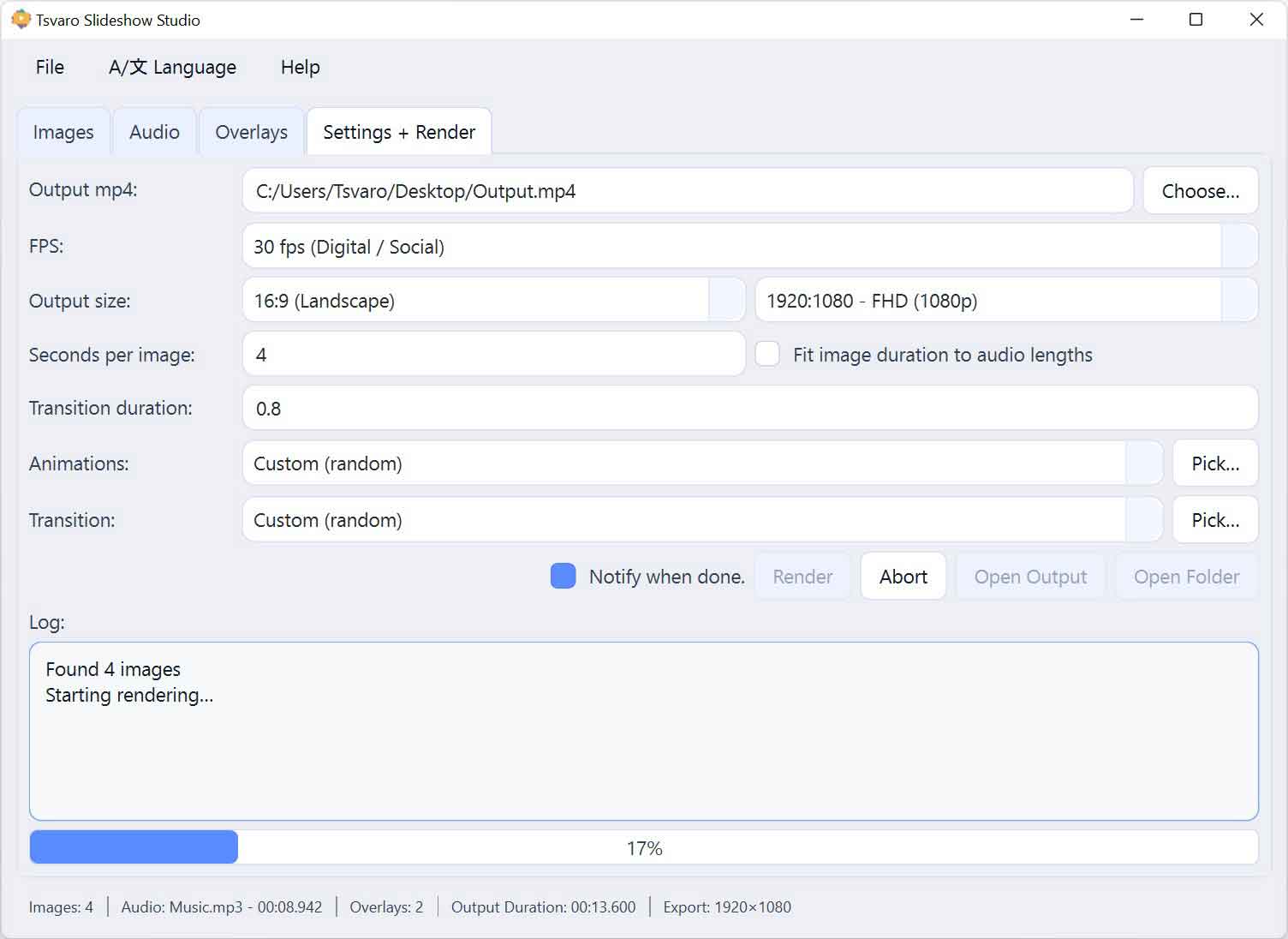
The Timing section in Tsvaro Slideshow Studio defines how long each image stays on screen and how long transitions overlap between images. These two values are the foundation of the slideshow timeline: they determine the total video duration, the pacing of cuts, and how smooth (or fast) the overall flow feels.
In Tsvaro Slideshow Studio, timing is controlled by three tightly connected controls: Seconds per image, Fit to audio, and Transition duration. Together they create a predictable rule-based timeline that is used both for duration estimation (status bar) and for the final render.
Seconds per image
The Seconds per image field controls the base duration of each still image clip before the transition overlap is applied. By default, this value starts at 4 seconds. This is the “main tempo” of your slideshow: larger values create a calmer pace, smaller values create a faster, more energetic cut rhythm.
- Type: numeric text field
- Default value: 4
- Applies to: every image in the slideshow (global timing)
When this field is enabled (manual mode), you can enter any positive numeric value. The render pipeline uses this value directly as the clip duration for each image.
Fit to audio
The Fit to audio checkbox changes how the “Seconds per image” value is determined. When enabled, the slideshow duration is driven by the audio timeline, and the app automatically calculates the image duration so the video finishes exactly at the end of the selected audio duration.
- Type: checkbox
- Default state: unchecked
- Effect: automatically calculates seconds per image from audio duration
When Fit to audio is turned ON:
- The app reads the effective audio duration (full audio, or the selected audio range if a selection is active).
- The app calculates a per-image duration that accounts for transition overlaps.
- The Seconds per image field becomes disabled (read-only) because the value is now auto-calculated.
- The app remembers your last manually entered seconds-per-image value, so when you turn Fit to audio OFF again, your manual value is restored.
The calculation used by the app is intentionally explicit and stable. When Fit to audio is ON, the per-image duration is computed as:
- seconds_per_image = (audio_duration + (image_count − 1) × transition_duration) / image_count
This formula exists because transitions overlap clips: if you did not compensate for that overlap, the final video would end too early. By adding back the total overlap amount before dividing, Tsvaro Slideshow Studio guarantees that the final rendered timeline matches the audio duration precisely.
Transition duration
The Transition duration field controls how long the overlap is between two consecutive images when a transition is applied. By default, it starts at 0.8 seconds. This value is used as the duration of the transition and also influences the timeline math because each transition reduces total runtime by the overlap amount.
- Type: numeric text field
- Default value: 0.8
- Applies to: every cut between images (global transition timing)
A key rule enforced by the render logic is that transition duration must be sensible relative to image duration. If the transition duration is invalid, Tsvaro Slideshow Studio automatically disables transitions for the whole render.
Specifically, transitions are considered OFF (and the transition duration becomes irrelevant) when:
- transition_duration ≤ 0 (no overlap can exist)
- transition_duration ≥ seconds_per_image (the overlap would consume the entire clip, which is not allowed)
In those cases, Tsvaro Slideshow Studio treats the slideshow as hard cuts (no transition overlap), and transition duration is effectively forced to 0 for the render pipeline. This prevents unstable timelines and prevents “negative offsets” in the transition chain.
How total slideshow duration is computed
When images and timing values are valid, Tsvaro Slideshow Studio computes the estimated total video duration using the same logic as the render pipeline:
- total_duration = (image_count × seconds_per_image) − ((image_count − 1) × transition_duration)
This formula is also reflected in the bottom status bar, where the app shows an estimated output duration. If you enable Fit to audio, the app still uses the same duration math-but it labels the estimate as coming from audio-driven timing (instead of images-driven timing).
Practical guidance for stable timing
- If you want a slideshow that lands perfectly on music beats or ends exactly with the audio, enable Fit to audio and fine-tune Transition duration.
- If you want a consistent, presentation-style pace (independent of audio), keep Fit to audio OFF and adjust Seconds per image manually.
- Avoid setting transition duration too close to image duration. The app will automatically disable transitions if the values become invalid, which can dramatically change the “feel” of the slideshow.
Timing is where a slideshow becomes either elegant or chaotic. The design of Tsvaro Slideshow Studio keeps timing rules strict on purpose: when values are valid, the output is predictable, and when values are invalid, the app protects the render pipeline by switching to safe behavior.