Video Settings
Settings + Render Tab - Video Settings
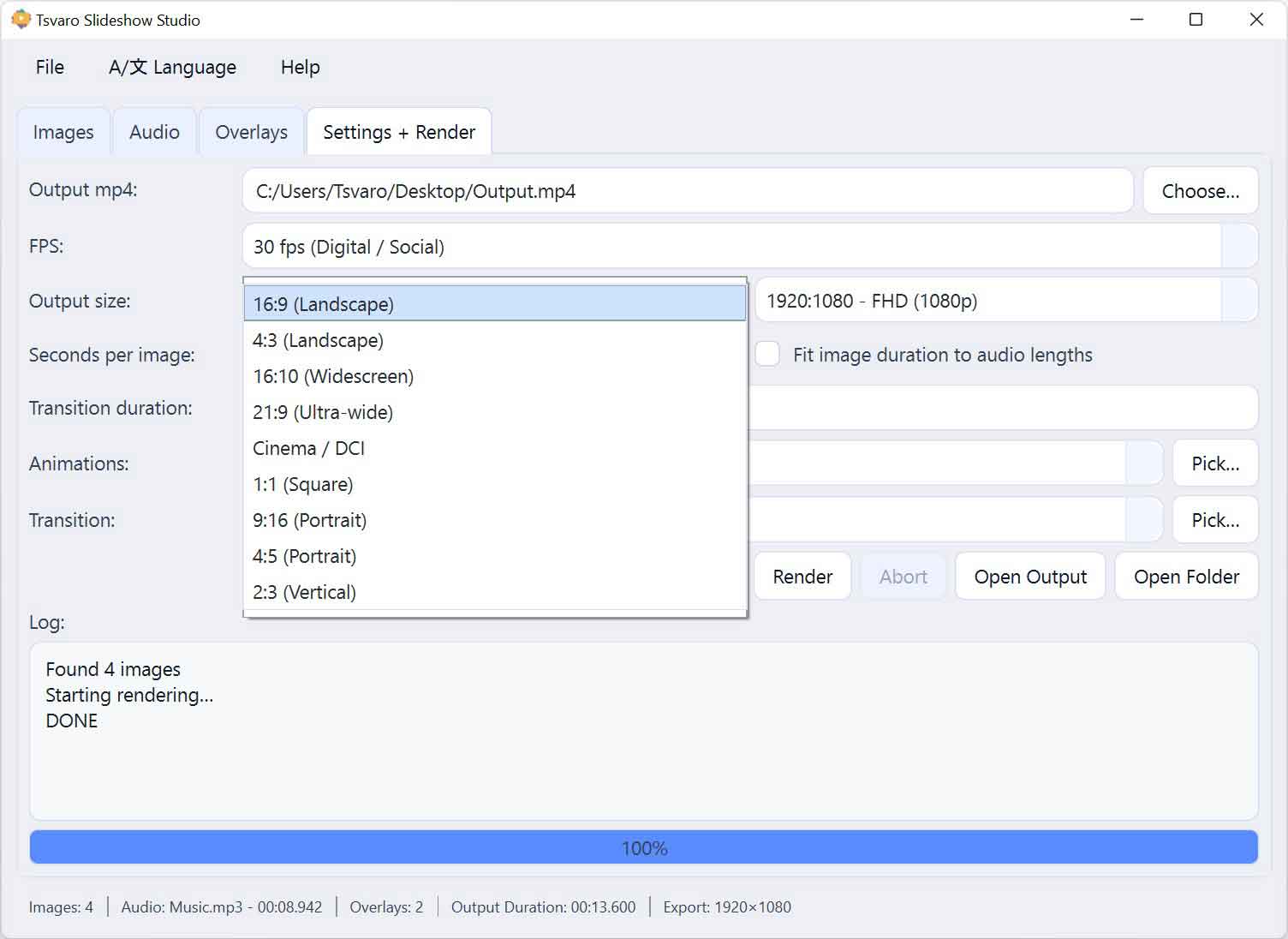
The Video Settings section in Tsvaro Slideshow Studio controls the technical format of the video that will be rendered: the frame rate (FPS) and the output frame size (chosen through an aspect ratio preset + a concrete resolution). These settings define the “canvas” for your entire project: images are fitted to it, overlays are positioned inside it, and the final MP4 video is encoded using these exact values.
Because these settings shape the output video frame, they should be chosen early whenever possible. If you change them later (especially aspect ratio or resolution), you must re-check overlays and overall framing to ensure everything still looks correct.
FPS (Frames Per Second)
The FPS dropdown sets how many frames are produced per second in the rendered MP4. In practical terms, FPS affects both motion smoothness and performance: higher FPS can look smoother (especially with animations and transitions), but it also increases render workload and output size.
- Where you set it: the FPS dropdown in the Video Settings section.
- Default behavior: Tsvaro Slideshow Studio selects a default FPS value automatically on first use (the default configured in the app is 30 FPS).
- What it affects:
- How smooth animations and transitions look in the final video.
- How the rendered video is encoded (the output is written with the selected FPS).
- Render time (higher FPS typically increases the amount of work).
If you are producing content for standard screens and general playback, the default FPS is usually the safest choice. If you are targeting specific requirements (for example, a particular display system or a strict production pipeline), you can select a different FPS from the list.
Output Size (Aspect Ratio + Resolution)
In Tsvaro Slideshow Studio, output size is chosen in two steps: first you select a target aspect ratio, and then you select a concrete resolution within that aspect ratio. This design exists to prevent “wrong combination” mistakes (for example: choosing a portrait aspect ratio but accidentally using a landscape resolution).
Aspect ratio preset
The Aspect ratio dropdown defines the shape of the video frame (for example, landscape, portrait, square, and other common formats). When you change the aspect ratio:
- The resolution dropdown is automatically rebuilt to show only the resolutions that belong to that aspect ratio.
- The app automatically selects a default resolution for that aspect ratio (the preset can define which one is the default).
- The overlays preview canvas is immediately updated to match the new output frame shape.
This is why aspect ratio is a “top-level” choice: it defines the overall geometry that everything else must fit into.
Resolution (width × height)
After choosing an aspect ratio, you select the actual output resolution from the second dropdown (shown as a list of labeled presets). Internally, Tsvaro Slideshow Studio uses the resolution value in the standard W:H format (for example, 1280:720).
- What resolution controls:
- The pixel dimensions of the exported MP4 file.
- The detail level and sharpness of the final output.
- Render time and resource usage (higher resolutions take longer and produce larger files).
- Validity rule: a resolution must be a proper W:H value. Tsvaro Slideshow Studio relies on this structure to correctly build the render pipeline.
When images are rendered, they are scaled to “cover” the output frame and then cropped to fit it cleanly. This means the output frame is always filled (no black bars), but depending on the original image proportions, the app may crop outer edges to achieve the selected W:H exactly.
How Video Settings affect overlays (important)
Overlays are positioned and previewed inside a canvas that matches the current output aspect ratio and resolution. That means Video Settings are not “just export options” - they actively define the workspace your overlays are aligned to.
- Changing aspect ratio changes the shape of the overlay preview canvas immediately.
- Changing resolution changes the effective coordinate space and scaling context used for the overlay canvas.
Practical rule: if you change the output aspect ratio or resolution after you already added and positioned overlays, you should immediately return to the Overlays tab and verify every layer. In many cases you will need to re-snap (align) overlays, adjust their size, and confirm opacity and proportions still look correct in the new output format.
Recommended workflow for stable results
- Choose your target aspect ratio early (this is the “format decision”).
- Select a matching resolution that fits your quality needs and render performance limits.
- Keep FPS at the default unless you have a specific reason to change it.
- If you later change aspect ratio/resolution, always re-check overlays and overall framing before rendering.
With these controls, Tsvaro Slideshow Studio gives you a clear, preset-driven way to define video format without allowing inconsistent combinations, while still keeping enough flexibility for different use cases and output targets.