Overlay List (Layers)
Overlays Tab - Overlay List (Layers)
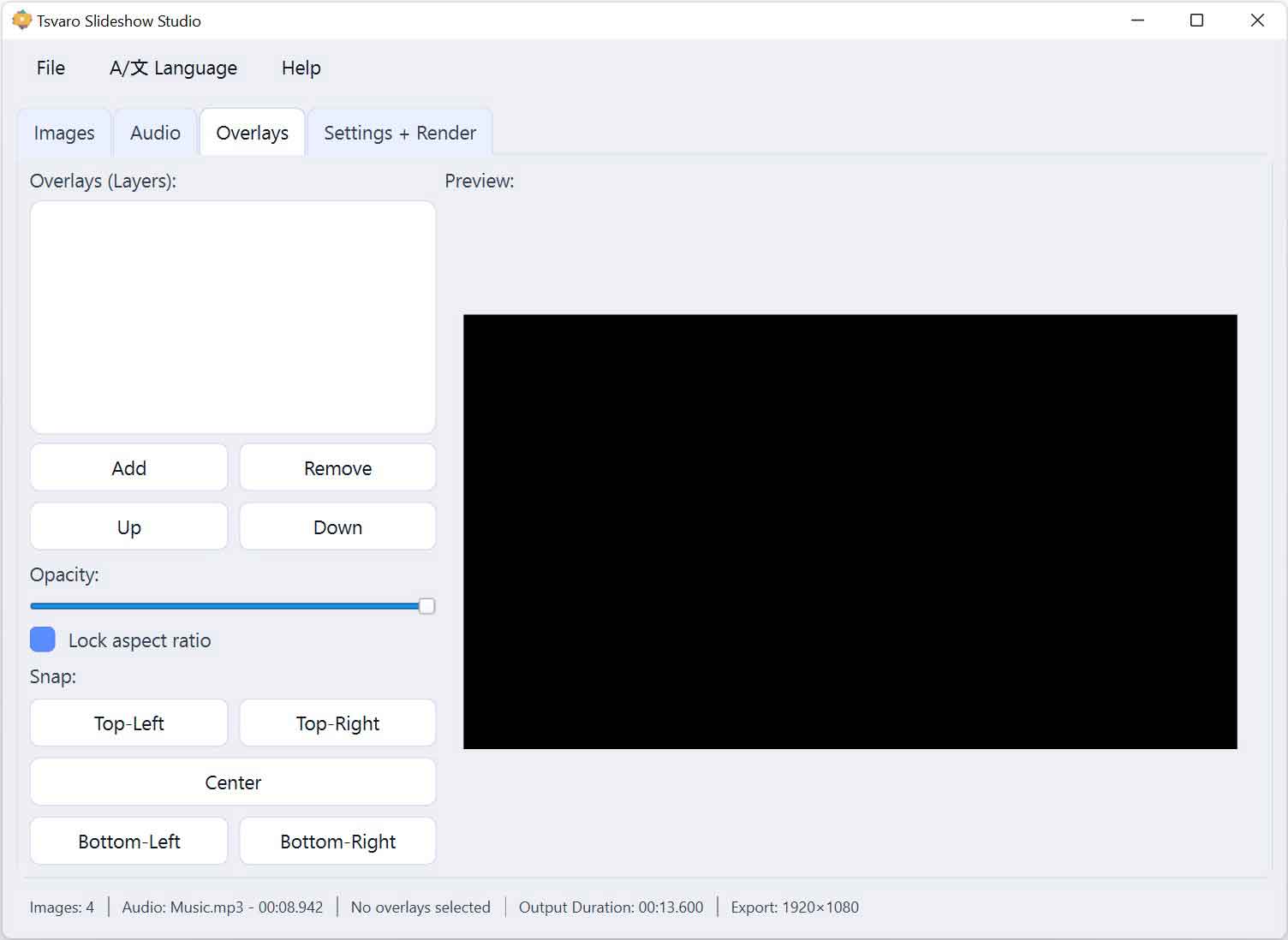
The Overlay List in the Overlays tab of Tsvaro Slideshow Studio displays all visual overlay layers that are applied on top of the slideshow images during rendering. Each overlay represents a separate visual element that can be independently positioned, adjusted, reordered, or hidden.
Overlays are optional. If no overlay layers are added, the slideshow renders normally using only images and (optionally) audio. When overlays are present, they are composited above the images according to the layer order shown in this list.
What the overlay list represents
Each entry in the Overlay List corresponds to a single overlay layer. The list defines:
- Which overlays are active
- The stacking order of overlays
- Which overlay is currently selected for editing
The visual order of items in the list directly controls how overlays are stacked in the final video.
Layer order and stacking logic
Overlay layers are rendered in the order shown in the list:
- Layers at the top of the list are rendered first.
- Layers below are rendered on top of the layers above them.
This makes it possible to place logos above frames, watermarks above backgrounds, or decorative elements above all other overlays.
Selecting an overlay layer
Clicking an item in the Overlay List selects that overlay layer.
- The selected layer becomes active for editing.
- Its properties are shown in the overlay controls section.
- The preview canvas highlights the selected overlay.
Only one overlay layer can be selected at a time.
Visibility indicator
Each overlay layer includes a visibility indicator.
- Visible overlays are included in preview and rendering.
- Hidden overlays remain in the list but are ignored during rendering.
This allows you to temporarily disable an overlay without removing it.
Multiple overlays workflow
The Overlay List is designed to support multiple layers at once.
- You can add several overlays (logos, frames, graphics).
- Each overlay can have its own position, size, and opacity.
- Layer order can be adjusted to control visual priority.
This layered approach gives you fine-grained control over how visual elements are combined in the final video.
Removing overlays
Overlay layers can be removed individually from the list.
- Removing a layer deletes it from the project.
- Other overlay layers remain unchanged.
This makes it easy to experiment with different overlay configurations without affecting the rest of the project.
How the overlay list affects rendering
- Only visible overlay layers are rendered.
- Layer order is strictly respected during rendering.
- Overlay properties are applied exactly as configured.
By managing overlay layers through the Overlay List, Tsvaro Slideshow Studio provides a clear and predictable way to add branding, decoration, or informational elements to your videos.